
Lenders can view data from the 1003 URLA and Truv Verification Report side-by-side in Encompass for Income, Employment, and Asset Verifications. This allows users to select specific fields to write data from the Truv Report to the 1003 URLA.
Note: Contact Truv Customer Success to enable this feature. Watch the video demonstration here!
Step 1: Open Update Loan Data
For an order completed in the last 30 days:
-
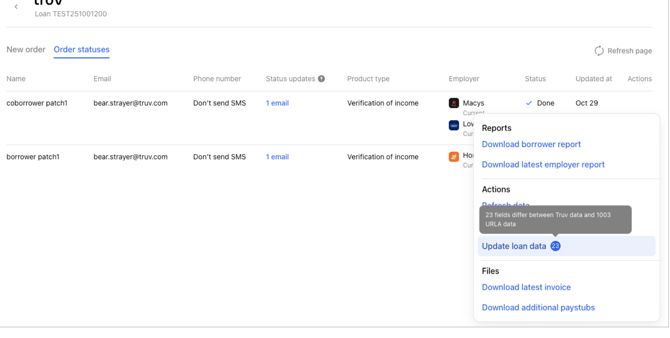
Open the Actions dropdown in Encompass.
-
Click the Update loan data button.
-
The number on the button indicates the number of mismatched fields between the 1003 and report data.
-
Step 2: Review and Match Data
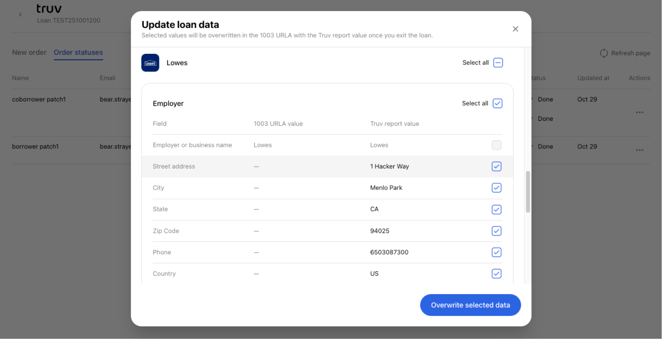
The Update loan data pop-up displays a comparison table for each employer detected in the Truv Report. Truv matches employers based on employer name:
-
If a match exists: Field values are shown side-by-side.
-
If no match exists: The 1003 URLA column will show empty values ("-"). Overwriting will create a new employment entry in the loan.
Step 3: Asset Matching
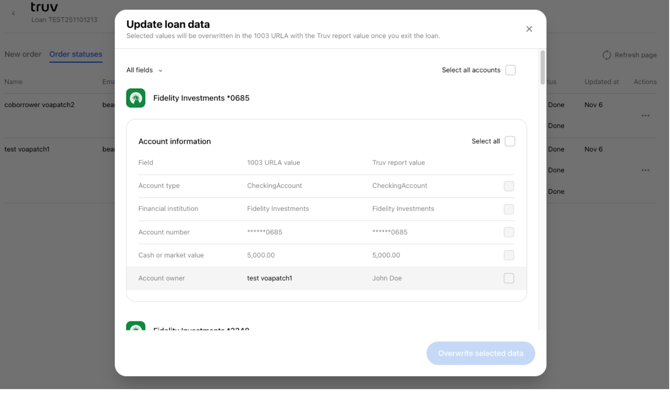
For Assets, there will be a list of accounts grouped by financial institution and a table comparing the 1003 URLA and Truv report values for each.
-
Manual Entries: Truv will not match asset data in the Truv report to asset data entered manually or by another provider.
-
Truv Entries: If Truv previously created entries in the 1003 URLA, the Update loan data form will match by Account number and allow overriding those.
Step 3: Overwrite Selected Data
-
Select all or specific fields, employers, or accounts.
-
Click Overwrite selected data to write the information to Encompass.